B2B Technology Platform
A Feature to Help Users Remember Their LinkedIn Connections
A simple way to remember how you know your connections on LinkedIn’s mobile app.
ROLE
Product Designer, Research, Wireframing, Prototyping
tools
Figma, Figjam, Zoom, Lyssna
TIMELINE
4 weeks
DEVICE
Mobile
Overview
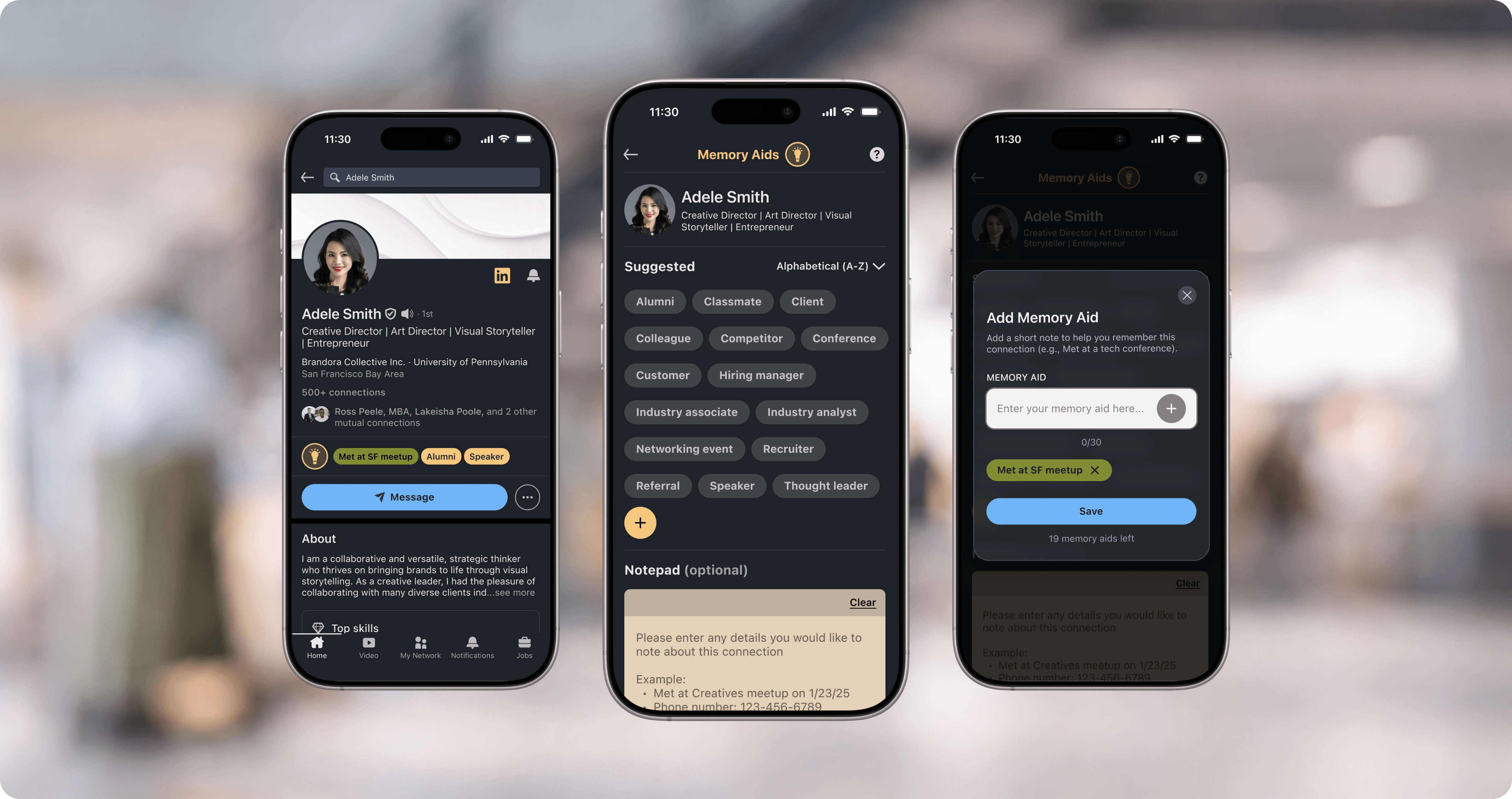
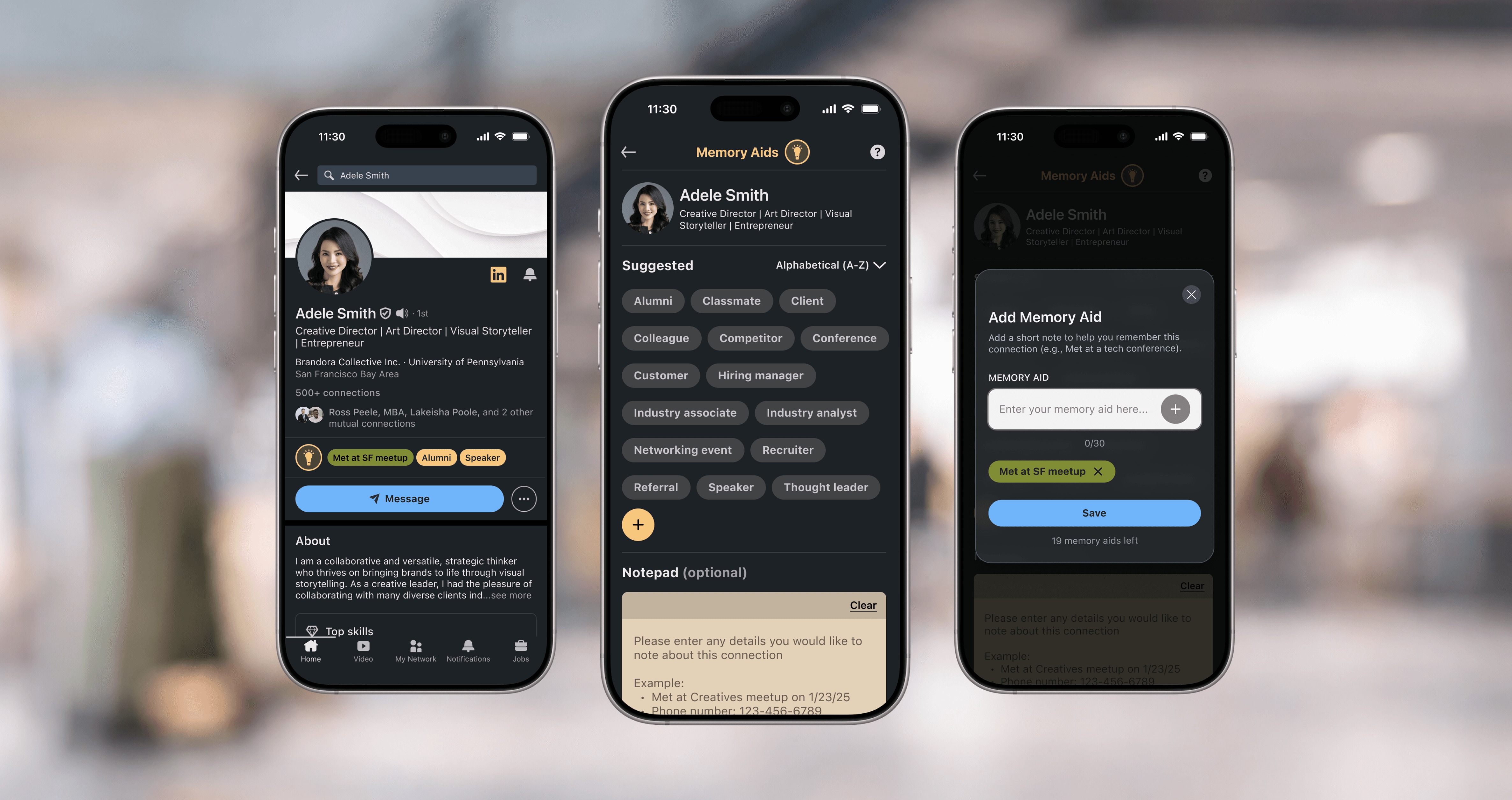
Memory Aids is a self-initiated feature concept for LinkedIn’s mobile app that lets users attach short tags (30 characters or less) such as “Met at meetup” or “Referred by Ana” directly to a profile. These glanceable notes provide just enough context to help users reconnect confidently, reach out intentionally, and navigate large networks with ease.
My Role
I led product scoping, research, and design for this conceptual feature, including user interviews, synthesis, user flows, wireframes, prototyping, and usability testing.
Impact

4.9/5 Ease of Use
Users found the feature intuitive, quick to learn, and easy to integrate into their existing LinkedIn habits.

100% Task Completion
All participants successfully completed both usability testing tasks without assistance.

More Confident Outreach
The feature reduced hesitation and made reconnecting feel more personal and meaningful.
The Problem
People forget how they know their LinkedIn connections, making outreach feel awkward and uncertain.
As networks grow, users lose track of where connections came from: a networking event, a referral, a cold outreach, or a past job. Without context, re-engaging feels uncomfortable, which hinders networking, career momentum, and opportunities.
HMW
How might we help users quickly recall why they connected with someone, so they can build stronger relationships and engage their network with confidence and purpose?
1 . Add a Memory Aid to any profile.
Choose from suggested Memory Aids or create your own to capture quick context about a connection.
Use the built-in notepad to add longer details when you need more nuance.
Organize your connections using Memory Aids.
Filter your connections list by the Memory Aids you’ve added to quickly surface people by shared context.
Make it easy to prioritize outreach and navigate a large network with confidence.
The Process
Competitive Analysis
Exploring the problem space through indirect competitors.
Before competitive analysis, I formed an early hypothesis from my experience in tech sales as a heavy LinkedIn user: users lack a simple way to revisit connections with meaningful context.
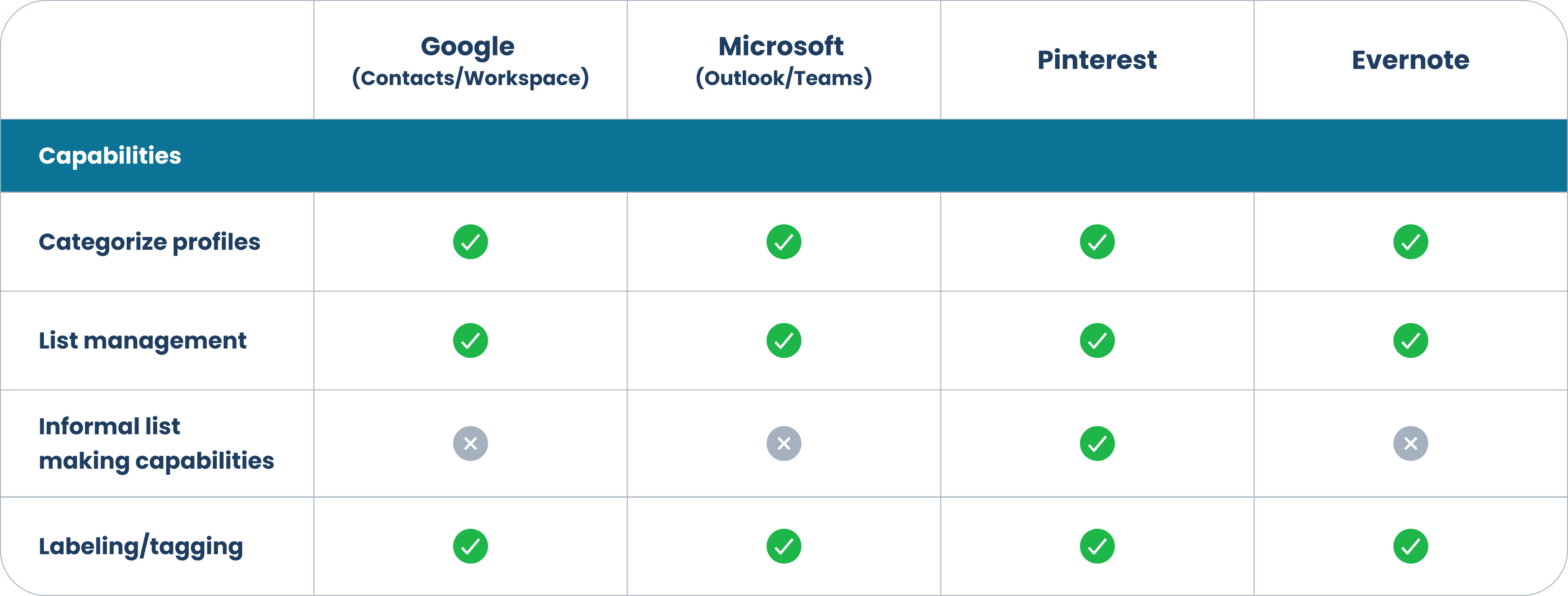
To explore this hypothesis, I analyzed four indirect competitors that support tagging, sorting, and/or tracking contacts, looking for organizational patterns that could shape interview questions and early feature ideas.
Validating Assumptions with Users
Moving from initial hypothesis to actual user insight.
After competitive research, I interviewed six LinkedIn users (late 20s–50s) over Zoom. While the initial assumption was that they wanted better ways to organize their networks, the real challenge was simply remembering how they know the people in their network.

Screenshot of a Zoom user interview to gather insights.
Common behaviors and pain points included:
Forgetting who connections are.
Hesitating to reach out when they can’t recall the context.
Using search to find people rather than scrolling through their LinkedIn contacts.
Looking at profiles to jog memory or figure out the original connection.
View quotes from users below...
Student, Age 27
“I couldn’t find someone I met at a networking event because I didn’t remember their name. It would be helpful to have a way to make a note or tag to jog my memory later.”
Small business owner, Age 28
“I had trouble remembering a past coworker’s name. If you don’t remember someone, it’s hard to search or find them just by scrolling through your connections.”
Founder/Creative Director, Age 52
“I saw someone in my connections and had no idea how we met or why we connected.”
Key Insights from Affinity Mapping
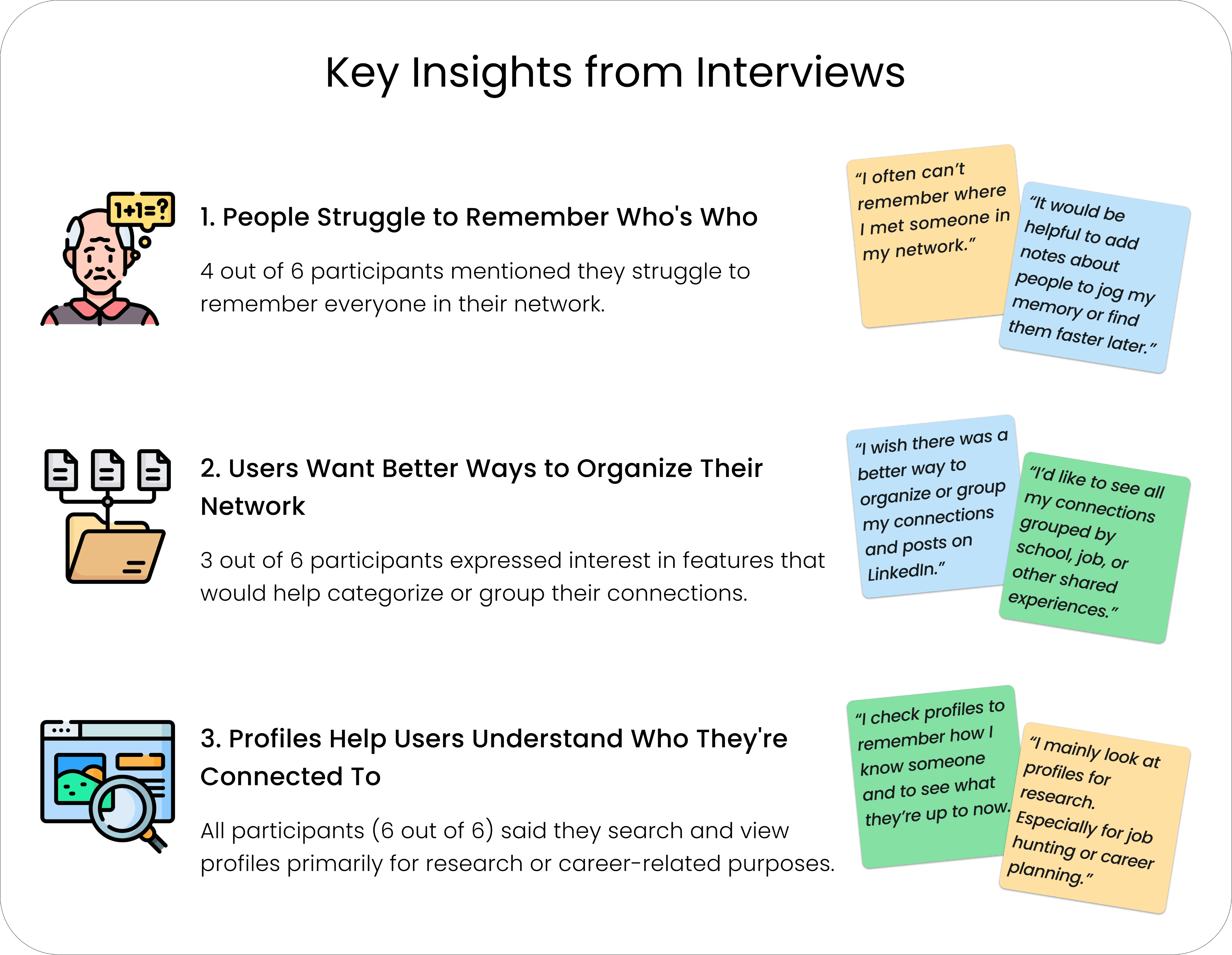
User insights revealed memory recall was the biggest pain point.
Synthesizing interview data surfaced a clear priority: users were struggling to remember who people were in their network. This insight shaped the direction of the solution and inspired the concept of short, glanceable “Memory Aids,” a lightweight tagging system designed to support both recall and organization.
Defining Persona & Needs
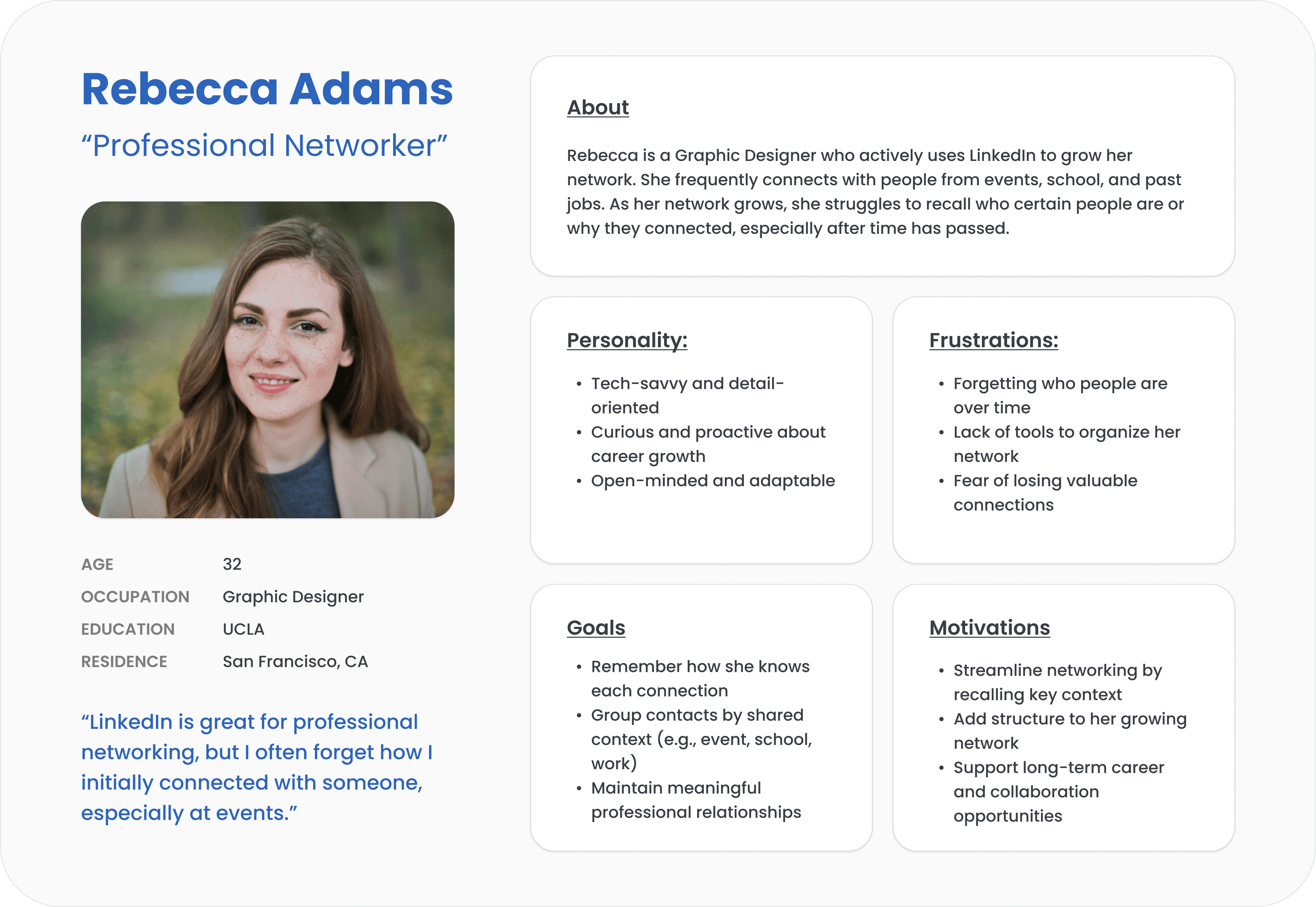
User Persona: Rebecca, “The Professional Networker”.
To translate the research insights, I created a persona who frequently adds new connections but often forgets how she knows them. Rebecca values relationship-building but needs quick cues to jog her memory. Her needs validated the value of a memory-jogging feature and shaped how users would access and interact with it.
Sketching to Solve Key Problems
Mapping where users would access Memory Aids.
Early paper wireframes explored where users might access Memory Aids (initially called “Tags”). The first concept placed an “Add Tag” option on the connections page, inside a three-dot menu beside each name. This approach kept adding and sorting actions in one place, building on LinkedIn’s existing sorting controls in this view.
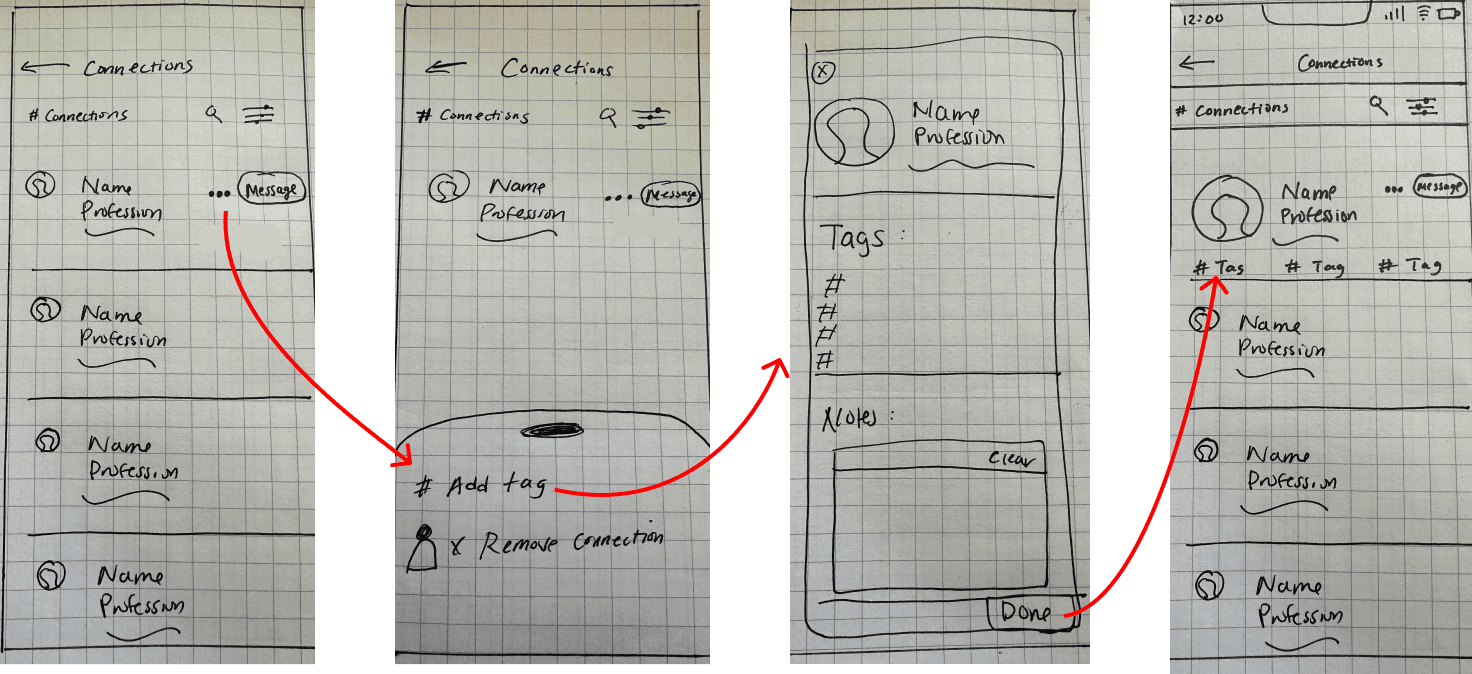
Initial low-fidelity flow for adding a Memory Aid from the connections page.
Revisiting User Expectations
Placing Memory Aids on the profile page, where users expect context.

Revisiting research and peer feedback showed that the initial placement did not match users’ mental models. People typically search directly for a specific profile instead of scanning their full connections list. Based on this, Memory Aids moved to individual profile pages, where users already expect contextual details and notes.
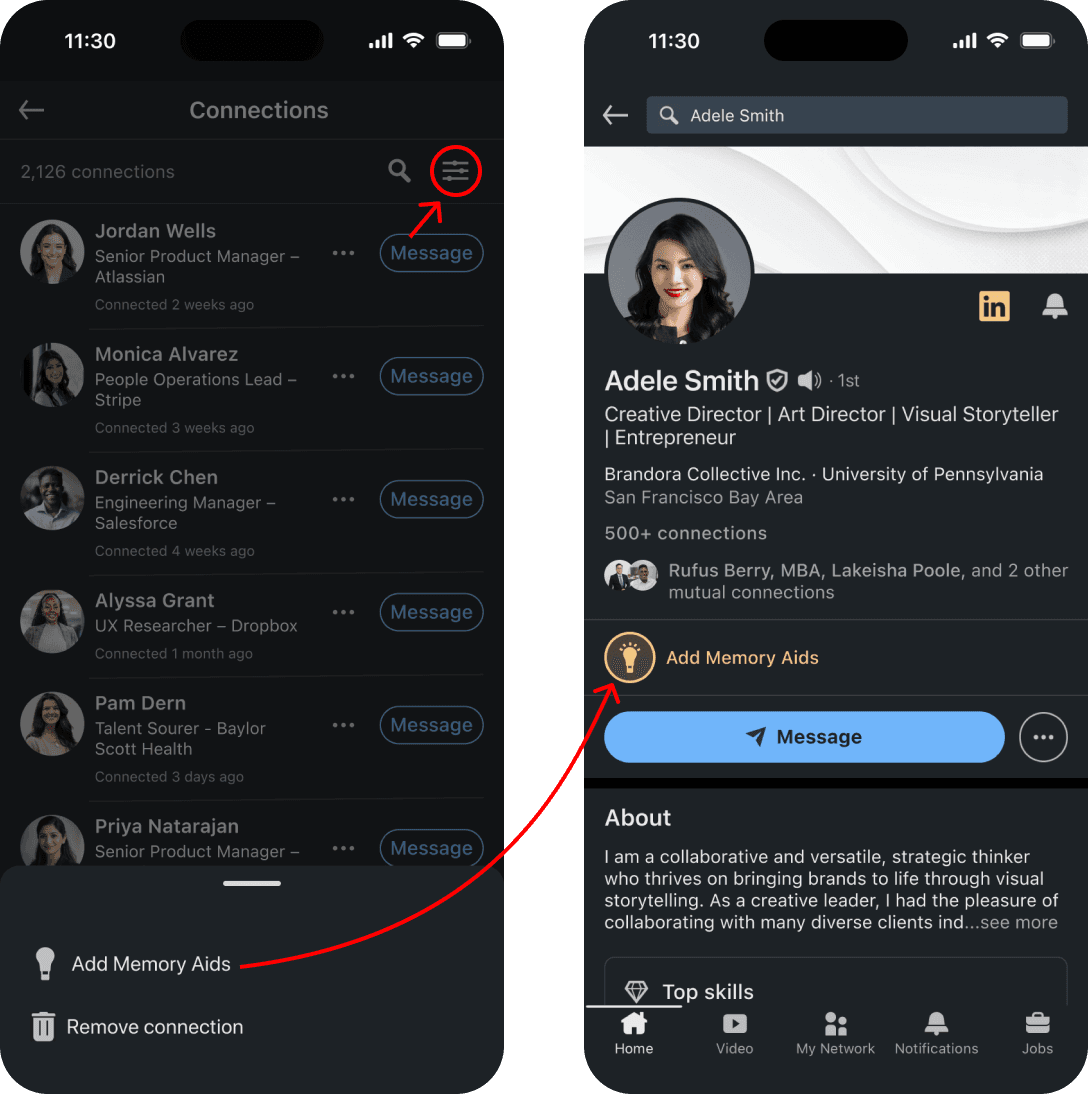
Initial placement: Memory Aids accessed from connections page.
Revised placement: Memory Aids accessed from profile page.
Mapping User Flows
Defining the path for adding and organizing Memory Aids.
To validate the revised placement, I mapped user flows for adding Memory Aids to help users recall why they connected with someone, and for sorting to organize connections by Memory Aids. This kept the experience lightweight and consistent with LinkedIn patterns, and informed the prototype used in usability testing.
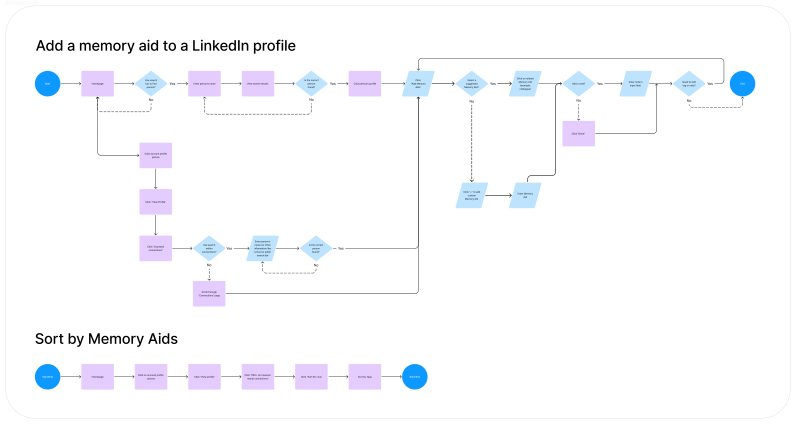
The top diagram captures the end‑to‑end user flow; the bottom focuses on the core sorting task. View flows in FigJam here.
High-fidelity wireframes
Feature #1: Memory Aids.
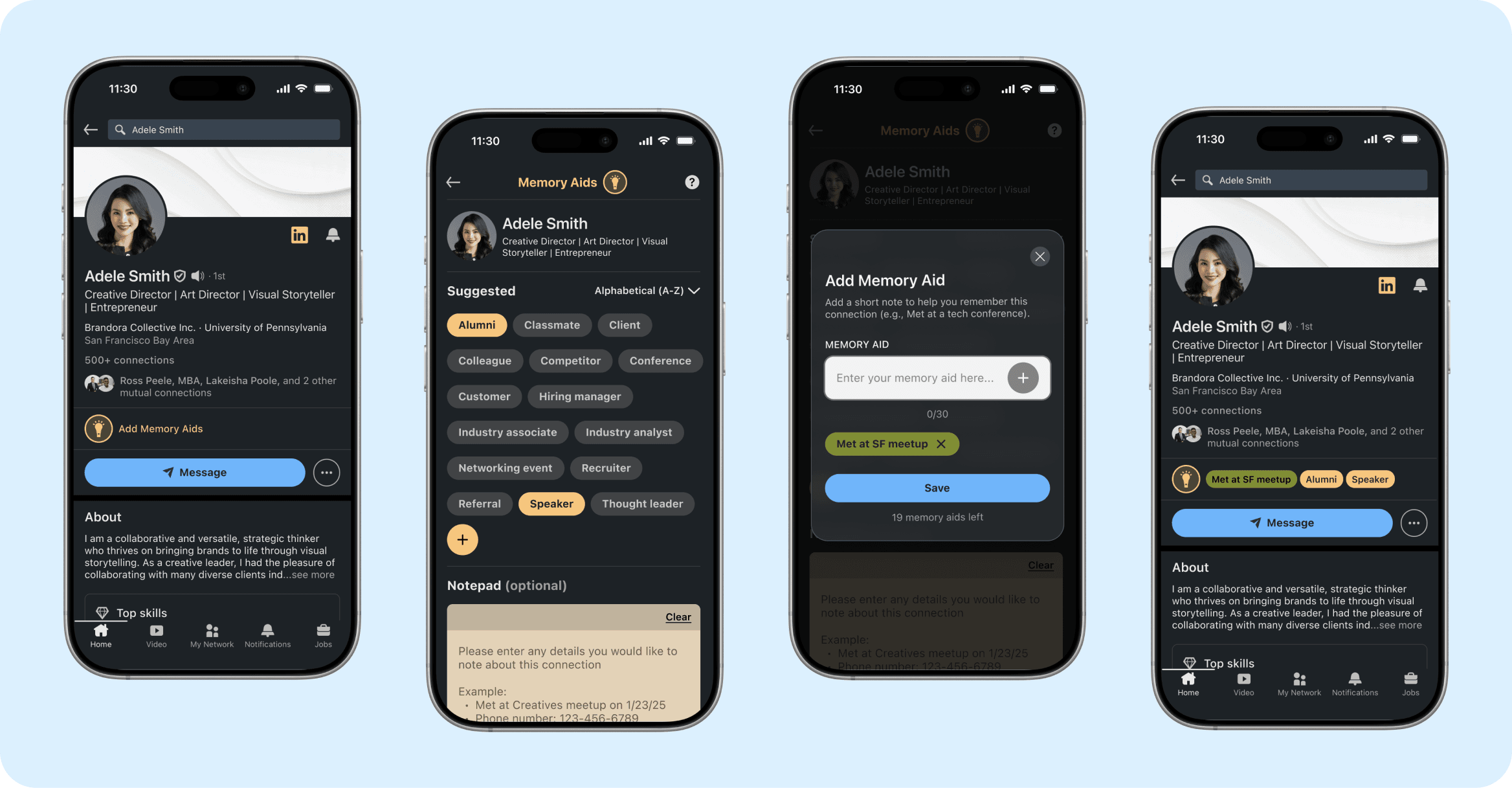
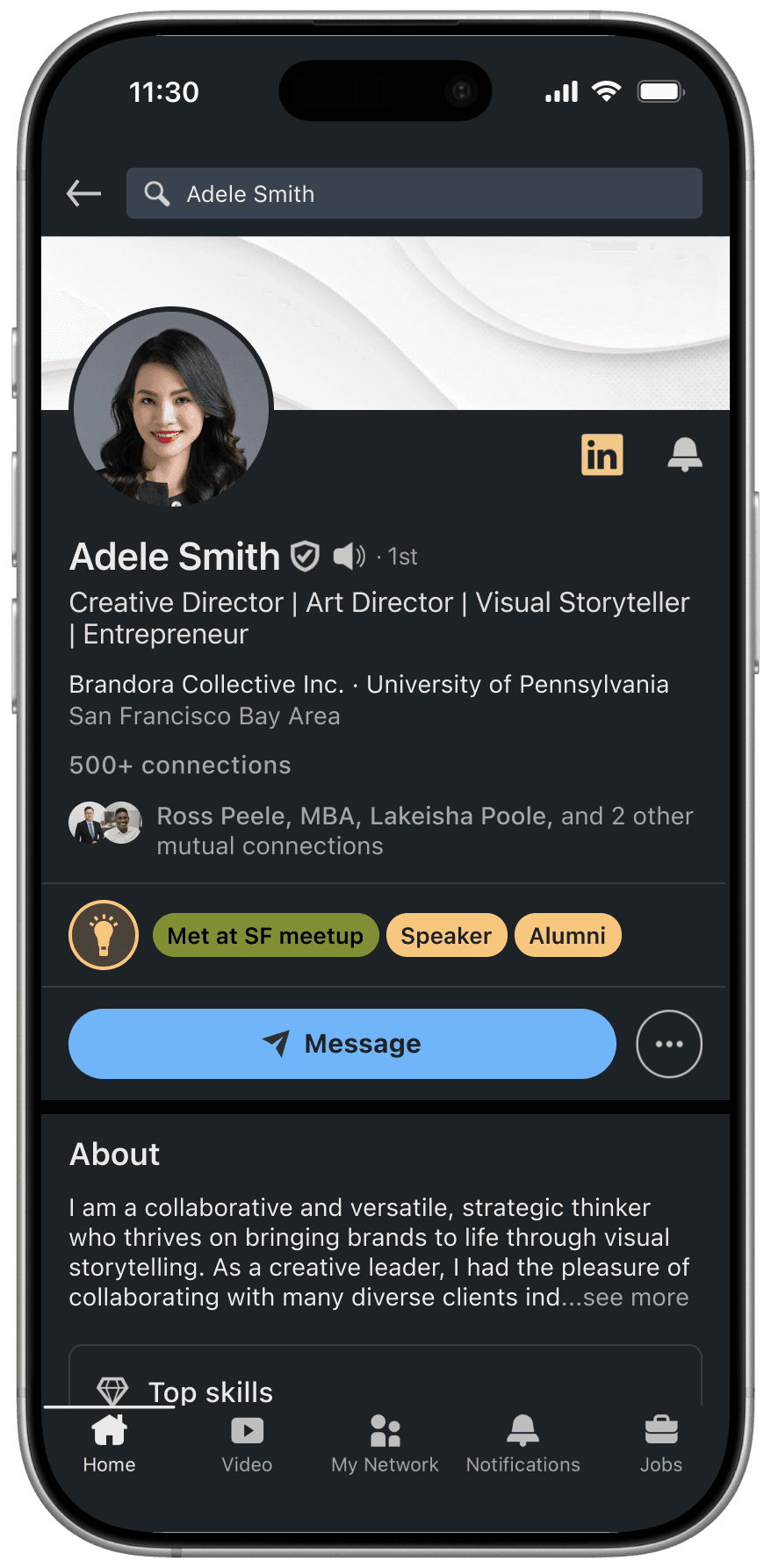
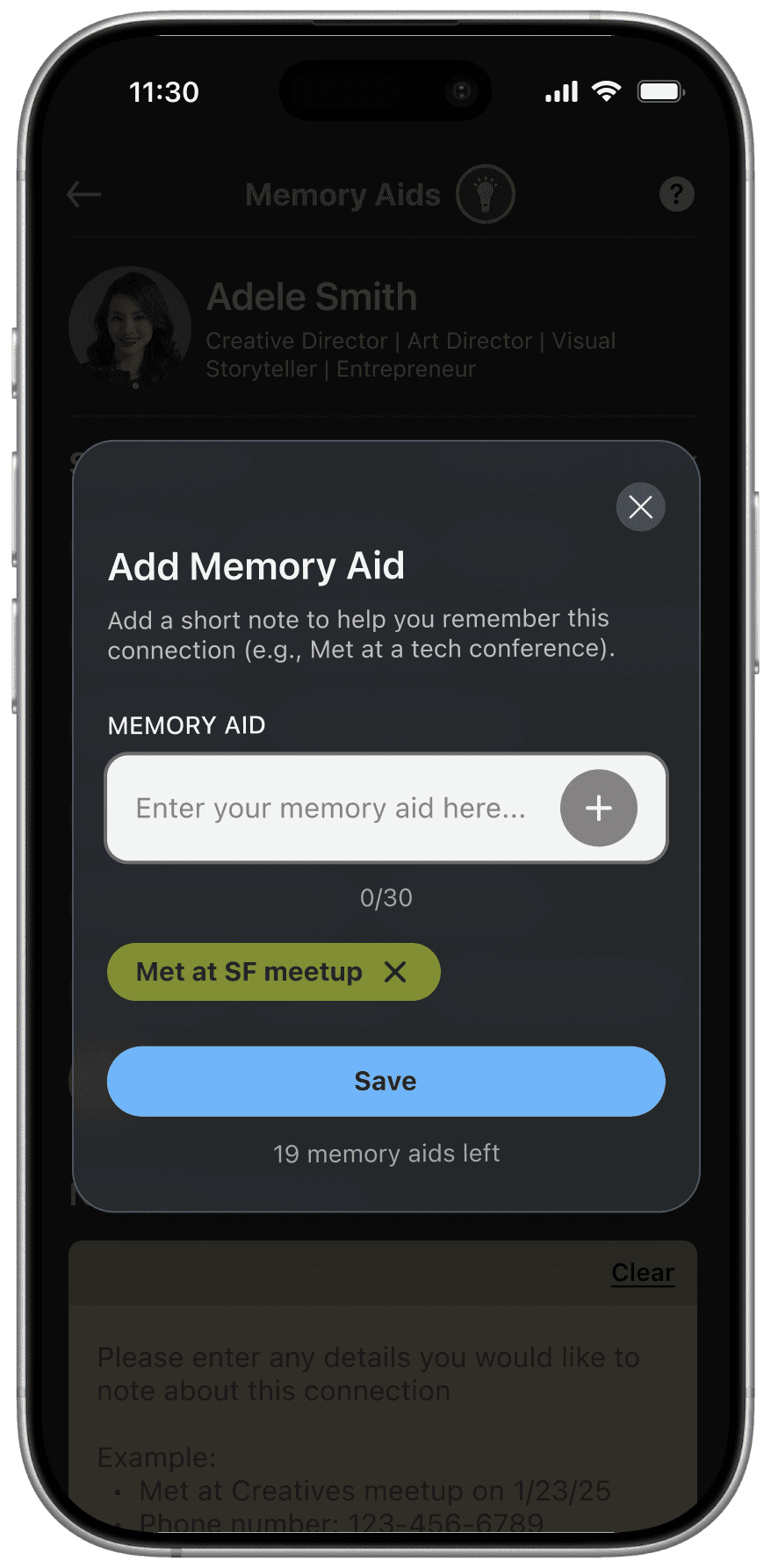
The refined design places Memory Aids directly on profile pages, making them easier to access and more contextual. Selecting “Add Memory Aids” opens a space where users can choose suggested Memory Aids, create their own, and optionally add notes, aligning with users’ expectations to find contextual details at the profile level.
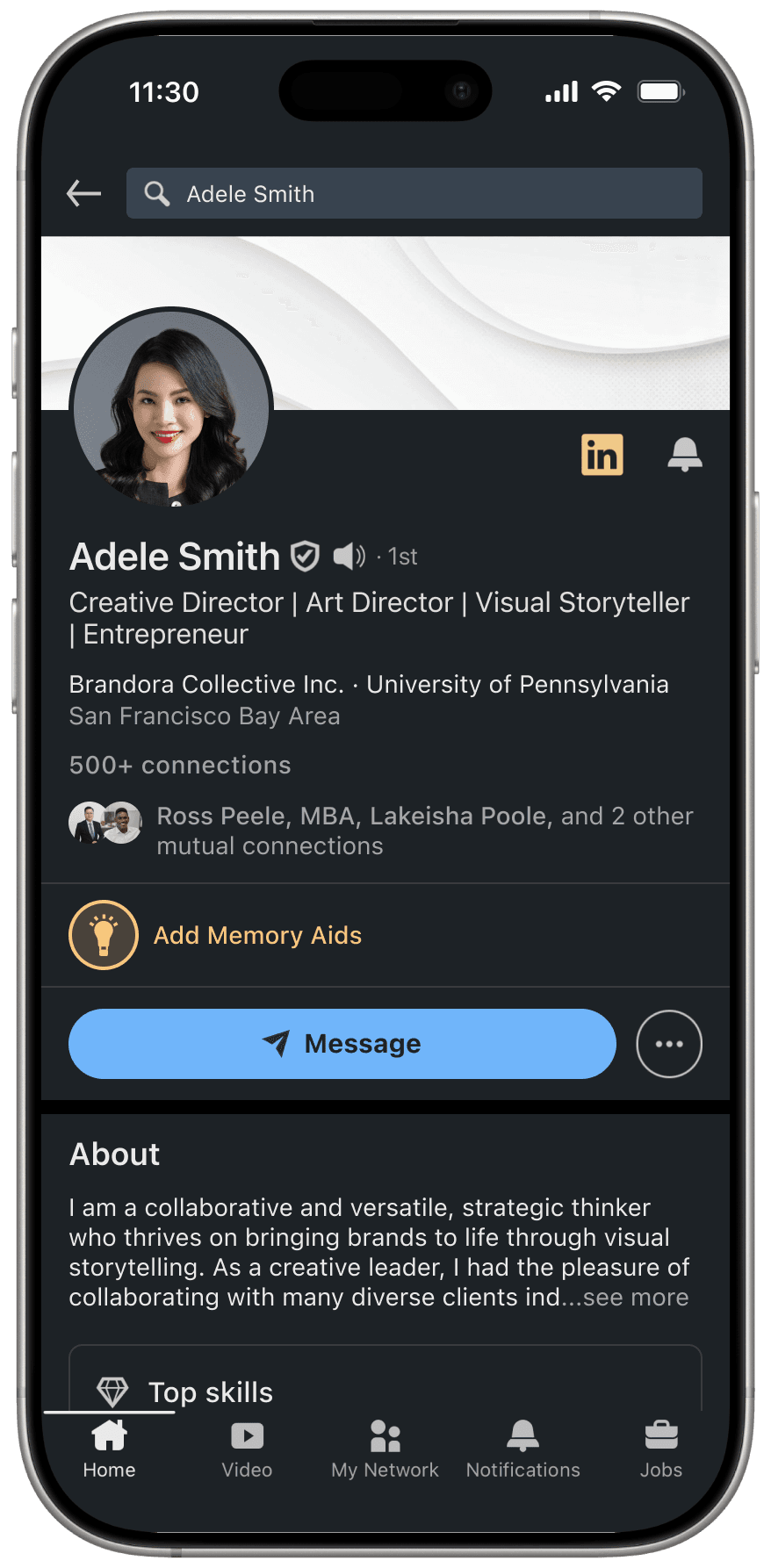
1. Profile page
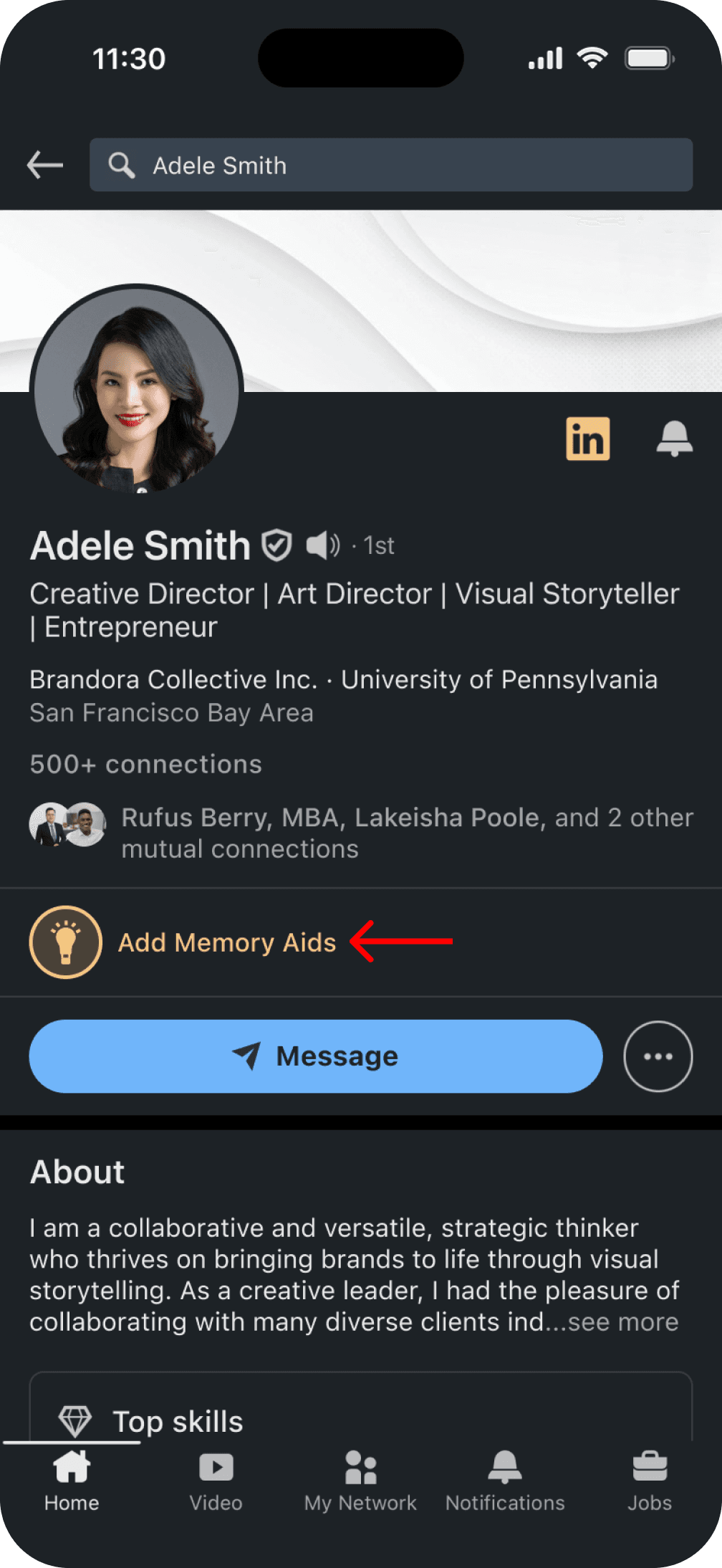
Entry point to Memory Aids from the user’s profile.
2. Tool tip
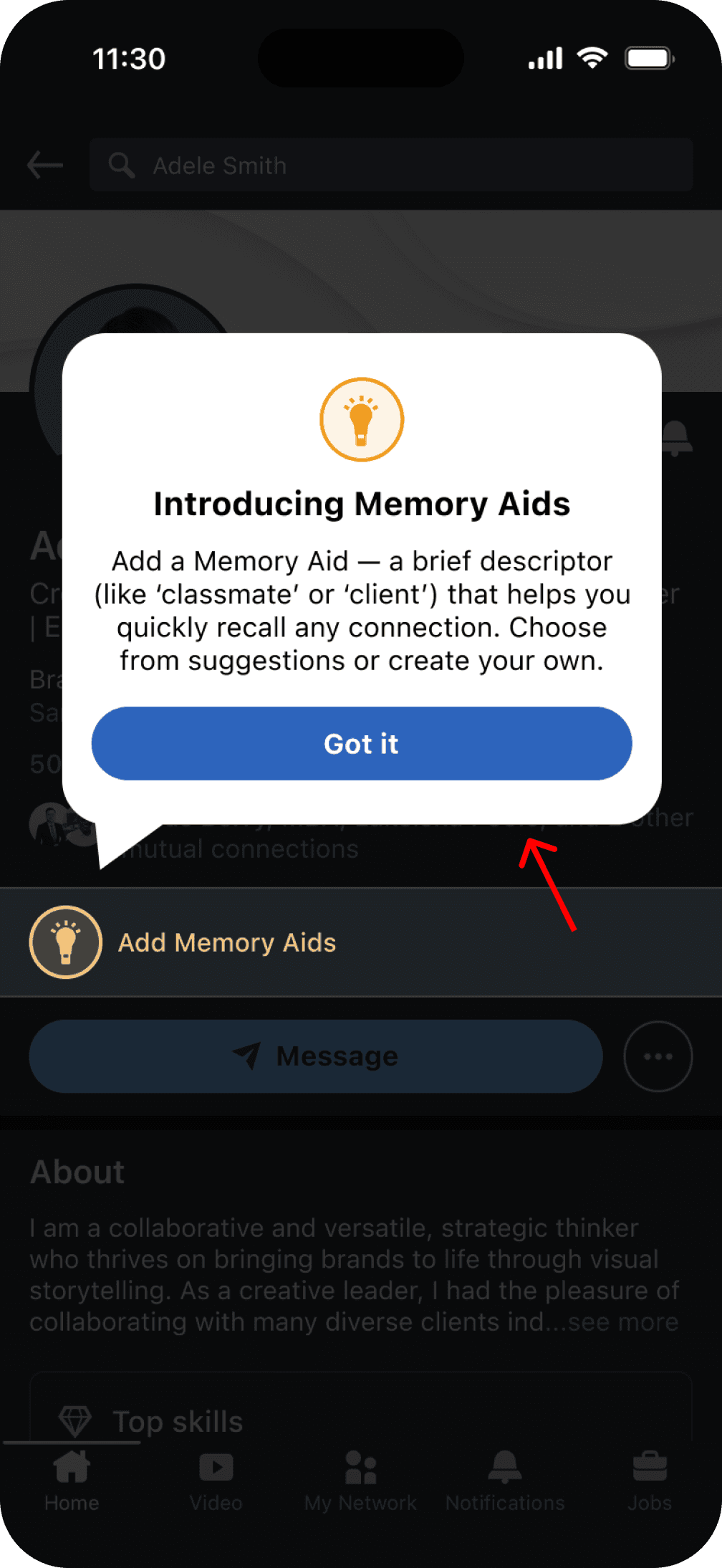
Brief onboarding explaining the purpose of Memory Aids.
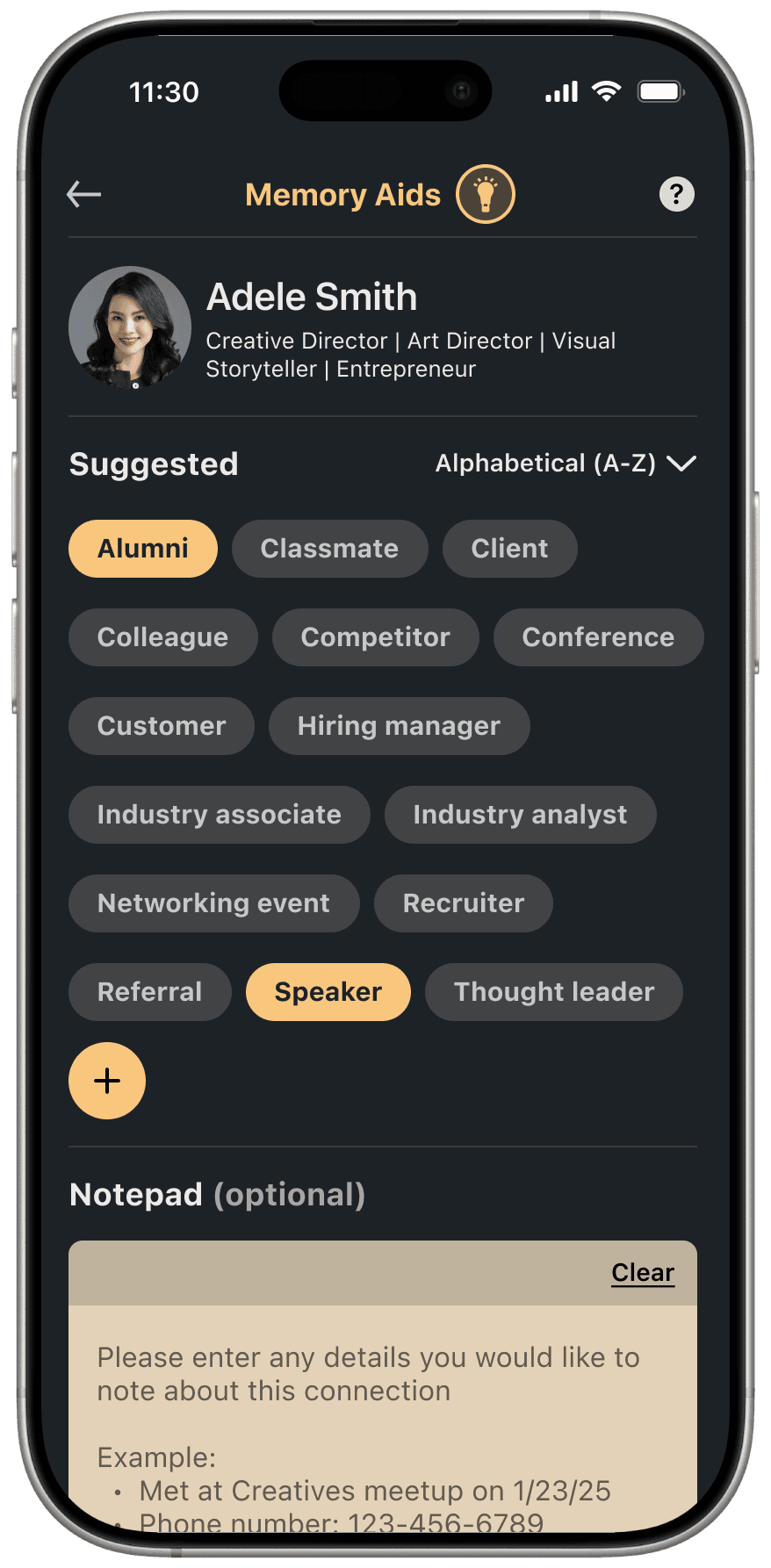
3. Memory Aids page
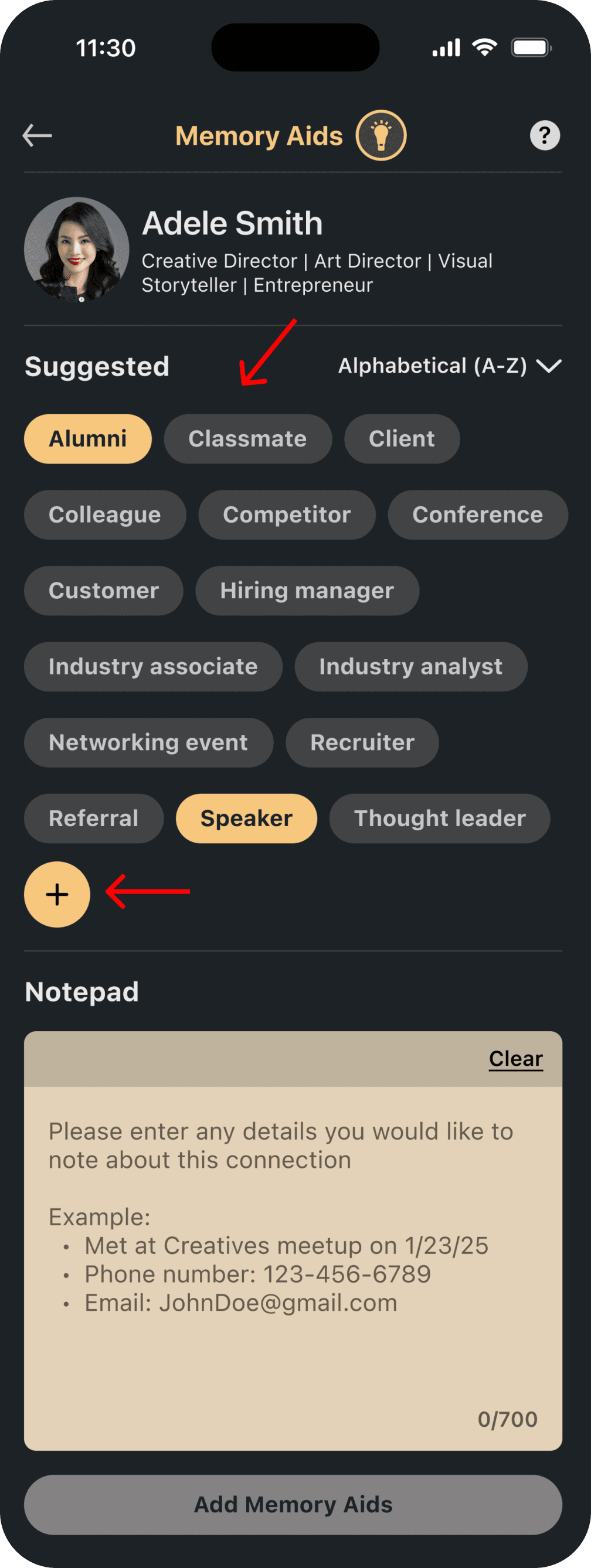
Users can select suggested Memory Aids or create their own (optional notepad placed at the bottom).
4. Enter Memory Aids
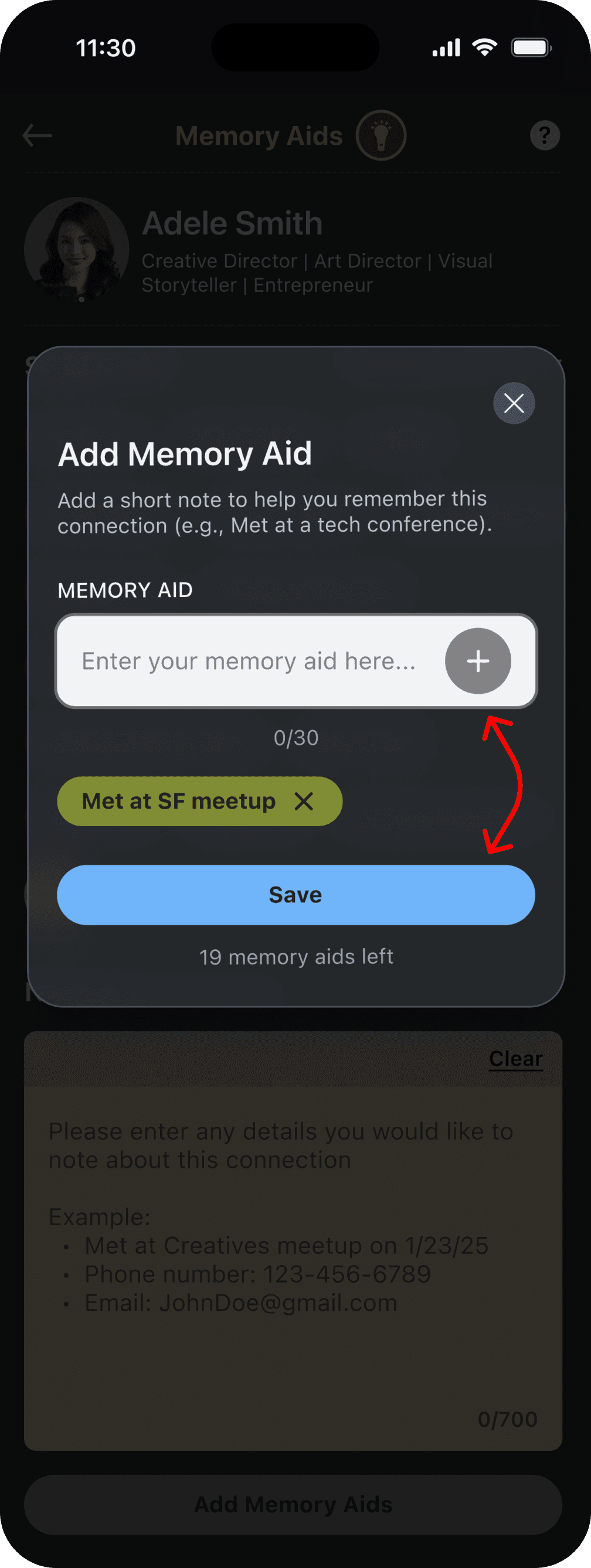
Overlay to add a custom memory aid not found in suggestions.
5. Added Memory Aid
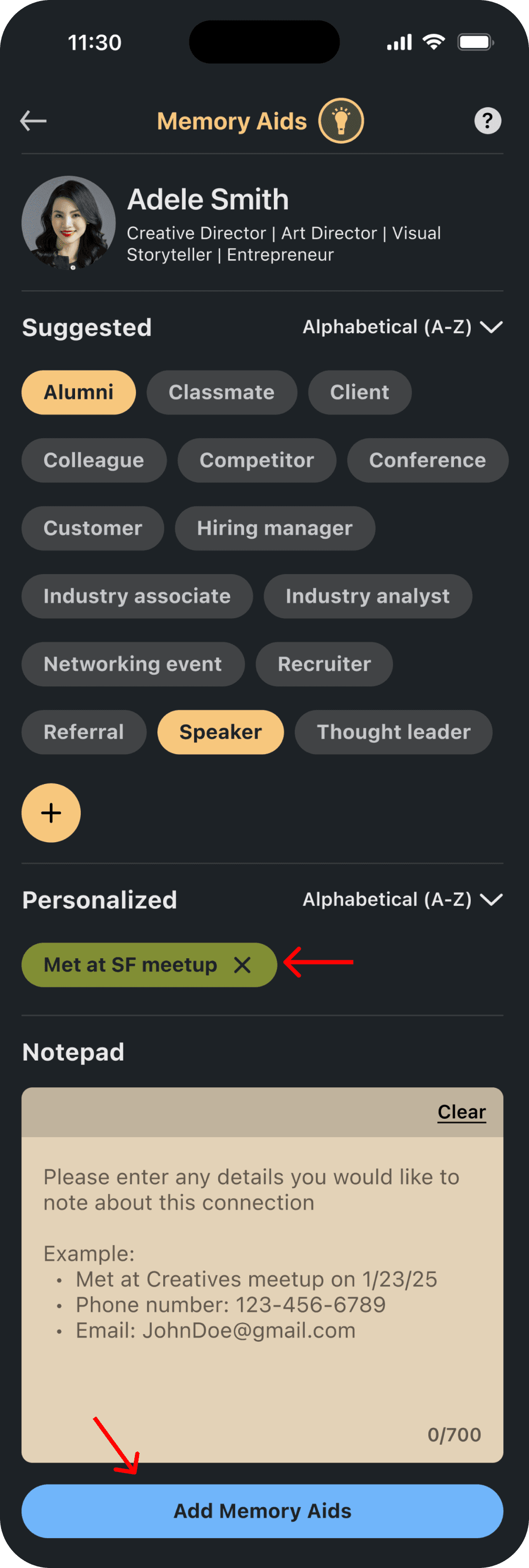
Custom Memory Aids appear under “Personalized” section.
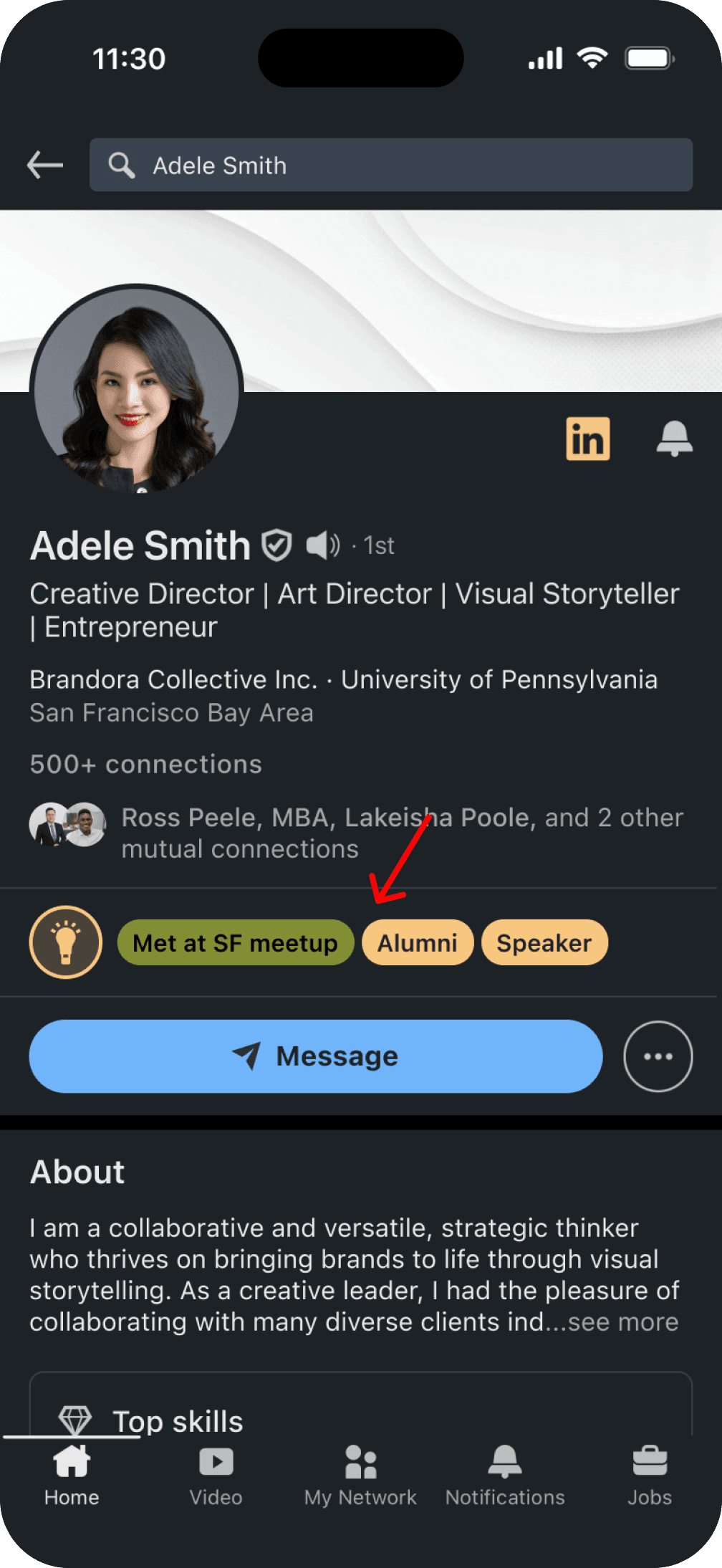
Selected and custom Memory Aids appear on the profile for quick recall.
Feature #2: Sort by Memory Aids.
To make Memory Aids actionable, I added it as a new filter within LinkedIn’s Sort By menu on the connections page. Tapping the sort icon opens a bottom sheet where users can choose one or more Memory Aids and instantly see all connections linked to it. This aligns with research showing users want an easy way to group their network by shared experiences.
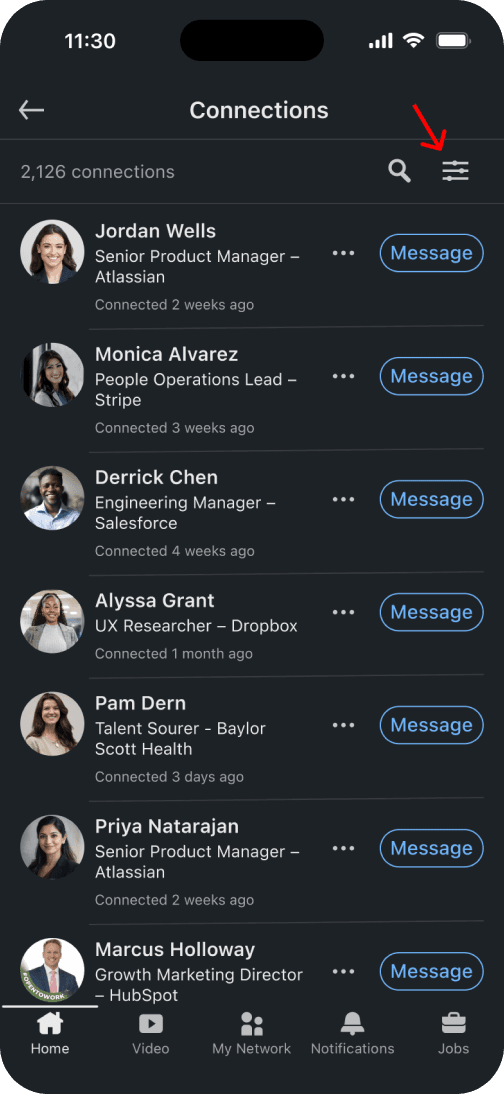
Entry point for applying Memory Aids filters from the Sort By menu.
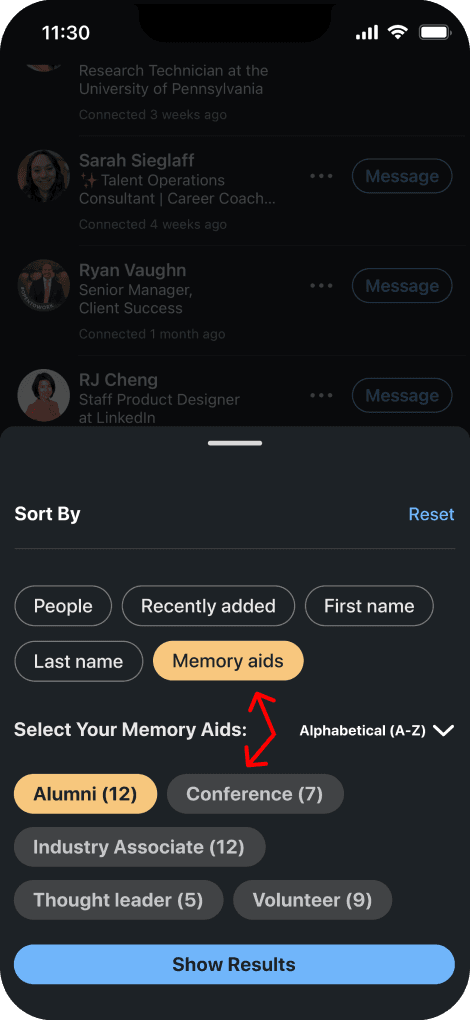
Memory Aids appear as selectable filters within the existing Sort By sheet.
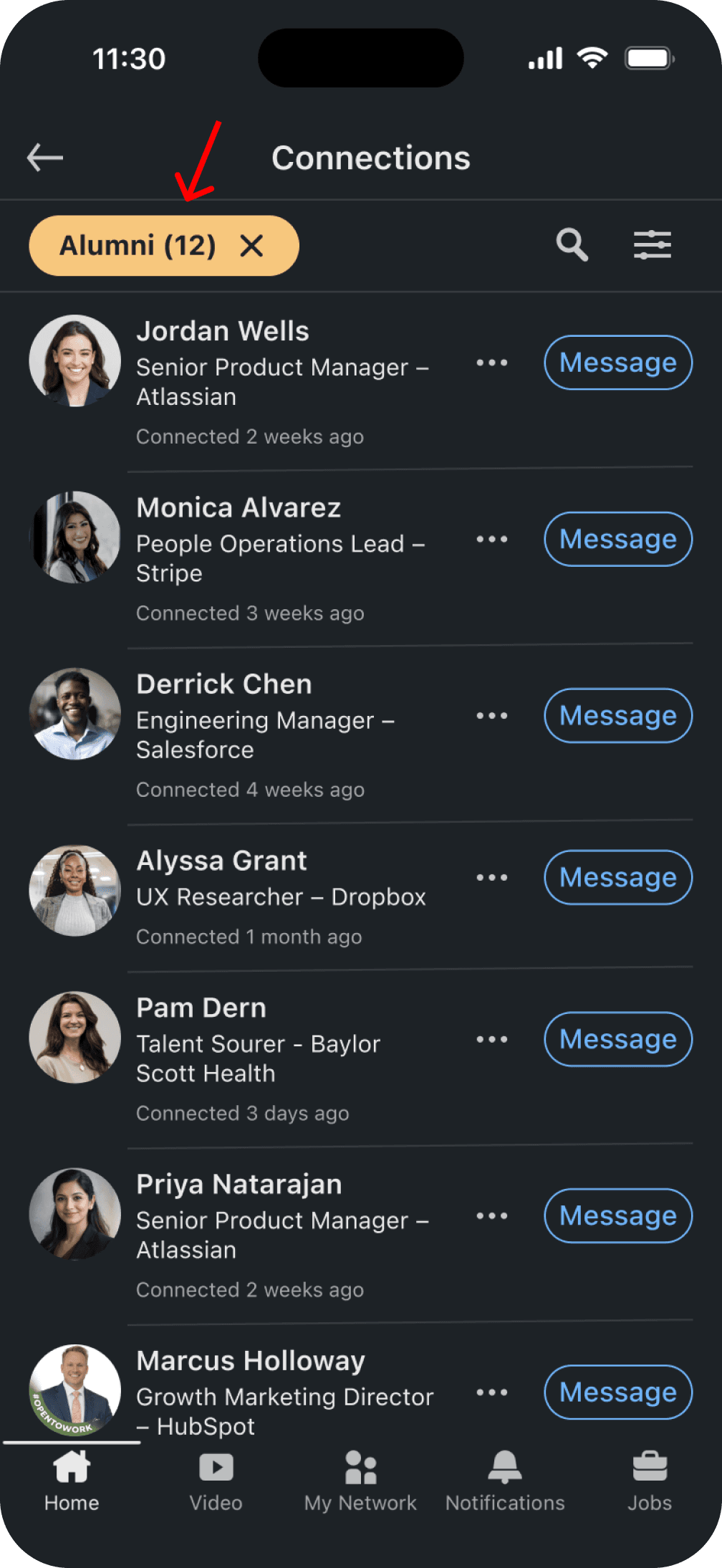
Filtered results display connections associated with selected Memory Aid.
Usability Testing
What worked during user testing and what needed improvement.
I ran two rounds of usability testing:
Round 1: Three moderated sessions.
Round 2: Five unmoderated tests.
The second round revealed key patterns in behavior and areas for improvement...

Task 1: Adding a Memory Aid
Misclicks revealed minor friction in task flow.
Task:
Participants selected a suggested Memory Aid, created a new one, added an optional note, and attached the Memory Aid to a profile.
Findings:
Users understood Memory Aids and completed the flow.
Friction occurred as one participant hesitated at the note step and repeatedly tapped earlier Memory Aids, suggesting the flow felt complete before reaching the notepad.
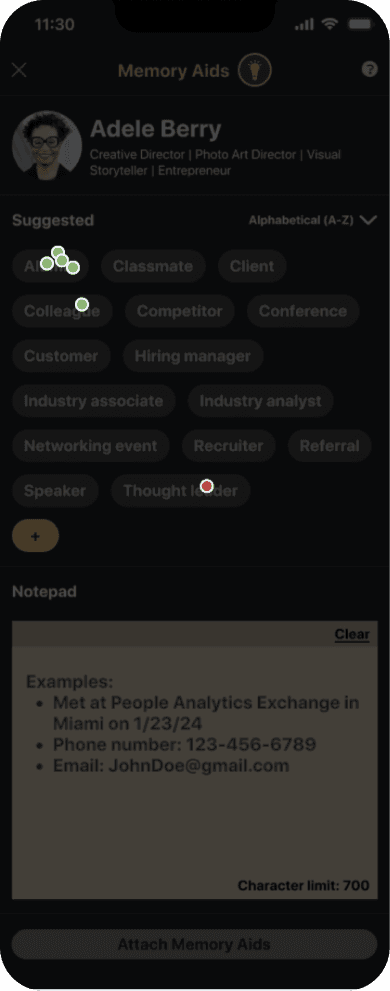
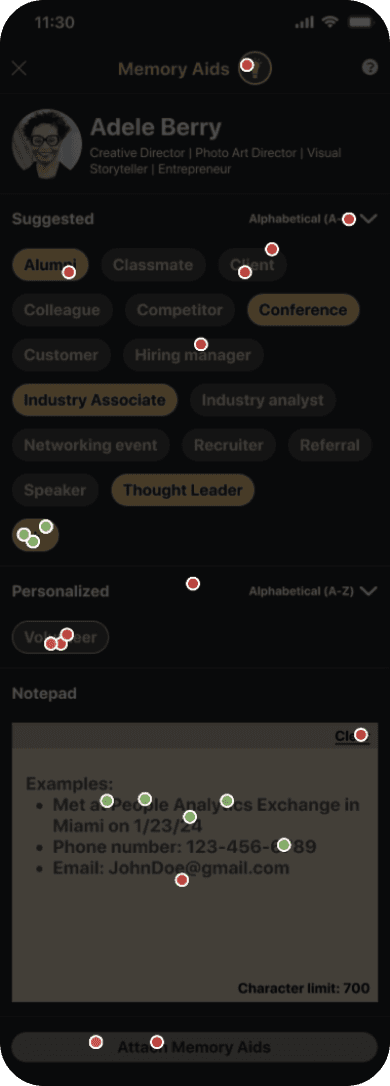
Screenshots of Lyssna heat maps visualizing where participants successfully clicked (green dots) and misclicked (red dots) during Task 1.
Task 2: Sorting by Memory Aids
Users navigated the filter with zero friction.
Task:
Participants were asked to sort their connections by a specific Memory Aid using the Sort By menu.
Findings:
Users found the filter faster than expected and completed the task easily.
Users found it useful for surfacing relevant contacts, which reinforced the value of sorting by Memory Aids.
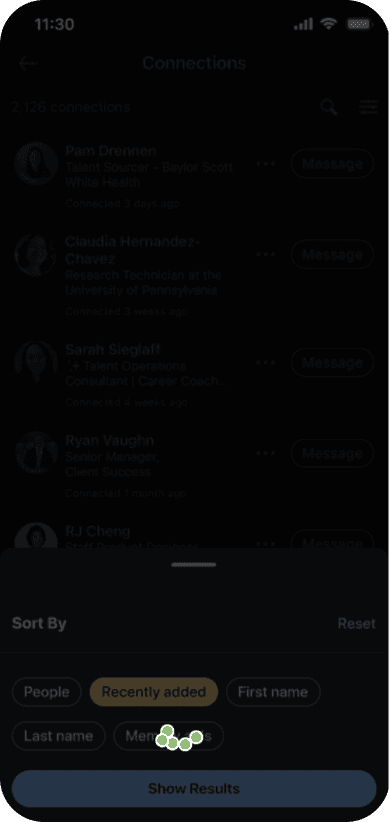
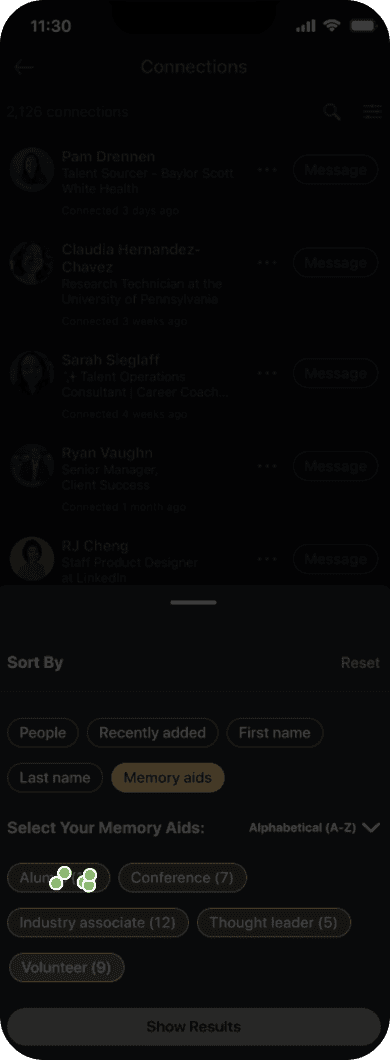
Screenshots of Lyssna heat maps visualizing where participants successfully clicked during Task 2.
Key Iterations
Refining clarity and interaction with design iterations.
After usability testing, I refined key elements of the Memory Aids flow to better guide users through the experience.
Iteration #1
Clarifying the optional nature of notes.
To reduce hesitation at the final step, I added a subtle “(optional)” label to the notepad. This clarifies its purpose and prevents unnecessary interaction while keeping the feature available for users who want to add more detailed context.
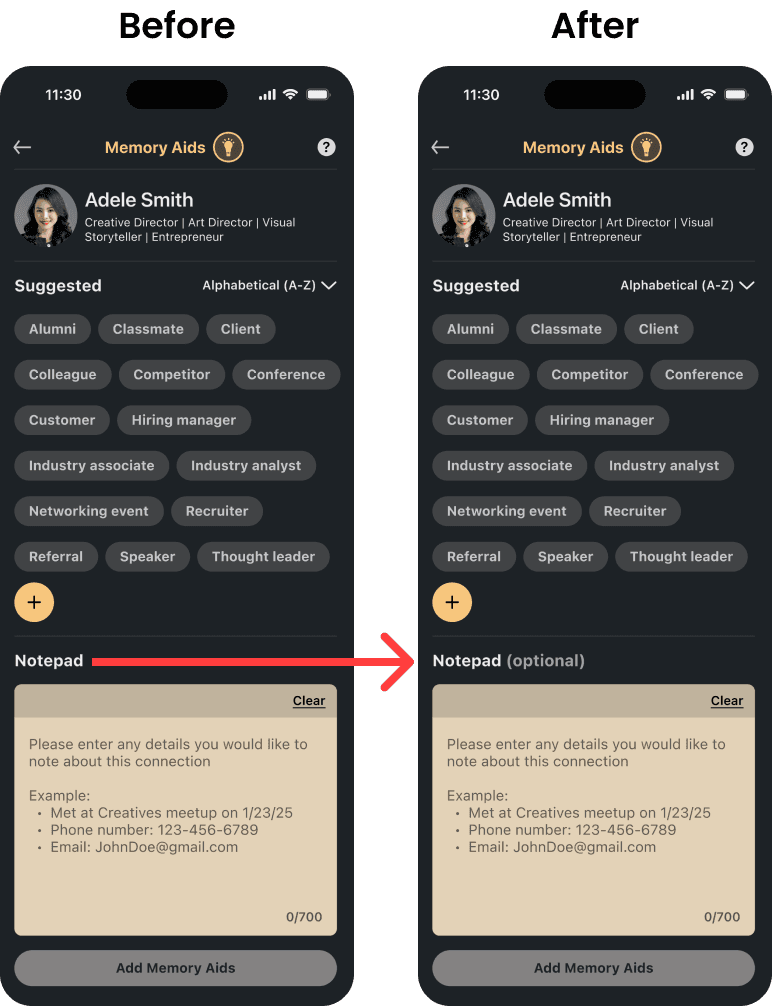
Label update: 'Optional' added to Notepad label.
Iteration #2
Restyling the Memory Aids input field.
To improve accessibility, I restyled the Memory Aids input field for clearer visibility and a more intuitive experience.
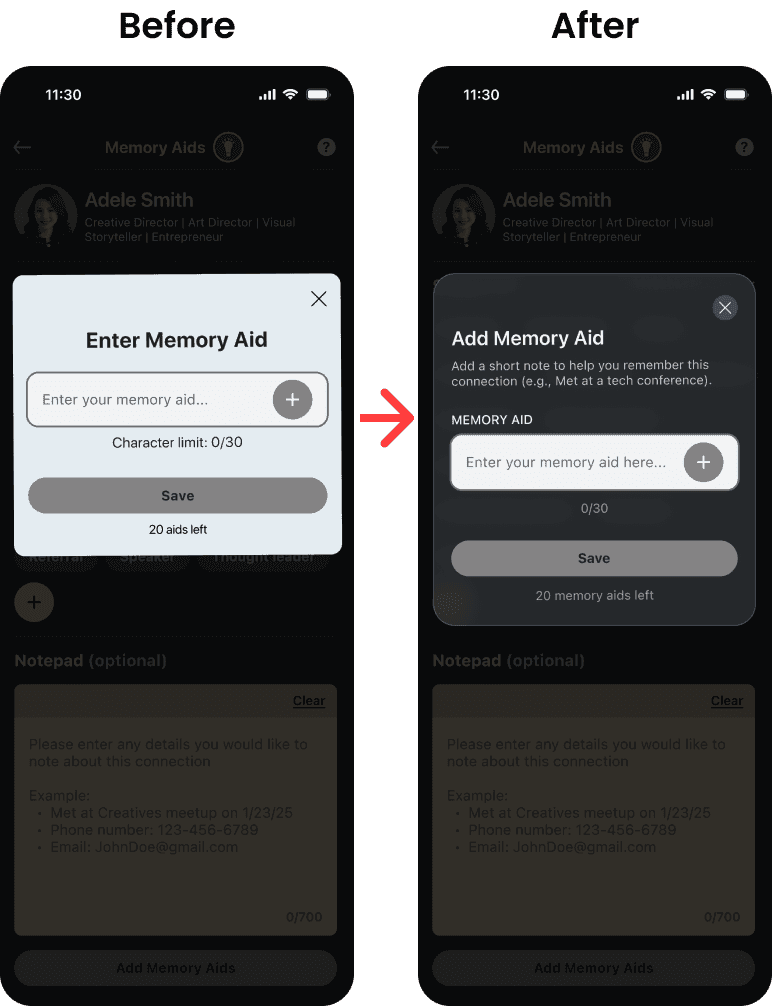
UI update: Memory Aid input field redesign.
Metrics from Usability Testing
Outcomes
After four weeks, the final design offered a clear, intuitive way for users to recall connection context without disrupting LinkedIn’s existing patterns. By keeping the experience lightweight and native, Memory Aids helped make outreach feel more personal and confident.
Reflection
Recreating LinkedIn’s components from scratch sharpened my attention to spacing, hierarchy, and system consistency. More importantly, testing reinforced how crucial it is to follow real user behavior.
Moving Memory Aids from the connections list to profile pages aligned with where users naturally look for context, making the feature more intuitive and reducing friction.